Industry data show that roughly 13,000 WordPress sites are compromised daily. Small-business breaches typically cost between $120,000 and $1 million, including cleanup, lost revenue, and customers who never come back.
Professional malware removal alone runs $50 to $4,800 per incident, and that's just fixing the immediate problem, not recovering reputation or the sales missed while a site was offline.
The reality? Most WordPress security problems are preventable. Not all of them, but most. Understanding where the actual risks are and addressing them systematically is more effective than expensive audits or hoping a single plugin will solve everything.
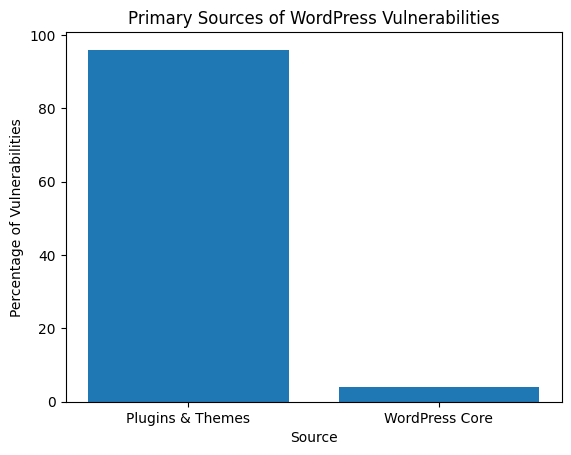
This breakdown matters. When people worry about WordPress security, they're often worried about the wrong things. WordPress core gets audited constantly and patched quickly. The real problem lies in plugins and themes, specifically those that haven't been updated in the past six months or have been abandoned and forgotten.
For ecommerce sites, this matters more because customer data and payment information are at stake. Attackers know this. They're not targeting sites personally. They're running automated scans looking for sites that haven't been maintained.
WordPress powers 43% of the web. That's not bragging, that's a target painted on every installation's back.
Attackers don't sit around picking specific sites to hack. They deploy bots that scan thousands of WordPress installations per hour, testing for common weaknesses such as outdated plugins, default usernames, exposed login pages, and weak passwords. WordPress follows predictable patterns, which makes automated attacks efficient and scalable.
Here's what the security research actually shows: plugins and themes account for 96% of WordPress vulnerabilities. Not WordPress core. Not hosting. The extensions installed to add a contact form or change fonts.
Even good plugins become security risks when updates are delayed or when unused tools are forgotten. For ecommerce stores, the stakes are higher because customer data, order histories, and payment metadata are stored. That makes these sites more valuable to attackers than static blogs or portfolio sites.
Updates patch known vulnerabilities. Skipping them is like leaving the front door unlocked because of worry about squeaky hinges.
Every delay increases exposure. Attackers actively exploit known plugin vulnerabilities, often within hours of public disclosure. Running software that's three months behind isn't avoiding risk; it's accepting it.
What needs regular updates:
The conflict problem: Updates sometimes break things. Testing updates on staging environments before pushing them live helps. Without staging access, schedule updates during low-traffic hours and keep a recent backup ready. The risk of update conflicts is real but smaller than the risk of running outdated software.
Something that shouldn't need saying: "password123" is not a secure password. Neither is a business name plus the current year.
Automated attacks succeed primarily because people reuse passwords or choose predictable ones. Bots test common passwords across thousands of sites simultaneously. Using complex, unique passwords makes these attacks fail. It's that simple.
Password requirements that matter:
Some hosts enforce strong passwords now. Don't rely on that alone. Review all user accounts periodically, especially if contractors or former employees had access. Abandoned admin accounts created years ago and forgotten have been found on client sites.
Two-factor authentication means attackers need more than a password to access a site. Even if they get credentials through a data breach or phishing attempt, 2FA stops them at the door.
This matters more for ecommerce sites because admin access exposes customer data, order information, and payment settings. The extra 10 seconds during login is worth it.
2FA implementation:
Warning: Losing a 2FA device without backup codes and recovery gets complicated. Most security plugins offer emergency recovery through hosting control panels, but the process varies. Document how recovery works before it's needed.
A hosting provider is the first line of defense. Budget hosting rarely includes meaningful security protections, which means relying entirely on plugins and hoping nothing breaks through.
Managed WordPress hosting costs more because server-level security stops threats before they reach WordPress. This reduces plugin strain, improves stability, and provides support from people who know how WordPress actually works.
What secure hosting includes:
Managed hosting won't compensate for outdated plugins or weak passwords. It's a foundation, not an entire security strategy. But trying to run an ecommerce site on $3/month hosting is penny-wise and disaster-prone.
Security plugins monitor sites for threats and enforce security rules automatically. When configured correctly, they block brute-force attacks, detect malware early, and alert to suspicious activity before it escalates.
For ecommerce, this adds visibility and control without requiring constant manual oversight.
Security plugins worth considering:
Web application firewall with malware scanning and active threat monitoring.
Activity auditing and file monitoring to catch unauthorized changes.
Solid Security (Formerly iThemes Security)
Strengthens WordPress default settings and adds authentication layers.
Offloads malware scanning to external servers to reduce the impact on hosting performance.
Configure security plugins to:
Free versions provide basic protection. Premium versions include scheduled scanning, advanced firewall rules, and cleanup services. Choose based on risk tolerance and budget. Don't run multiple security plugins simultaneously they conflict with each other.
Every person with admin privileges is a potential security weakness. Not because they're malicious, but because accounts get compromised or people make mistakes.
Grant the minimum access required. If someone needs to edit blog posts, they don't need admin access. If they're managing orders, they need the Shop Manager role in WooCommerce, not the Administrator role.
WordPress role hierarchy:
Too many sites have freelance writers hired last year who still have admin access because it was easier than figuring out role management. That's lazy, and it's dangerous.
Backups are a safety net when everything else fails. Strong security reduces risk but doesn't eliminate it. When a site gets hacked, corrupted, or broken, reliable backups mean quick restoration without paying thousands for cleanup.
For ecommerce sites, backups protect product data, orders, and customer information. They're the difference between a bad day and a business-ending crisis.
Backup practices that work:
Backup solutions worth using:
Scheduled backups with cloud storage integration.
Real-time incremental backups with minimal server impact.
Testing matters more than you think. Clients have discovered their backups were corrupted only after they needed them. Test a full restore on staging at least quarterly. It takes 20 minutes and could save days of panic.
SSL encrypts data between a website and visitors, protecting login credentials, payment details, and personal information from interception. For ecommerce, SSL is required to build trust, ensure compliance, and avoid browser warnings that kill conversions.
Why SSL matters:
Most hosts offer free SSL through Let's Encrypt. Easy win. But SSL certificates from Let's Encrypt usually expire every 90 days. Verify auto-renewal is working, or browser warnings and a broken checkout will appear without warning.
The WordPress login page is where automated attacks concentrate. Bots constantly attempt to guess credentials using brute-force methods. Securing this entry point reduces server load and substantially lowers the risk of unauthorized access.
Login security measures:
Trade-off: Hiding the login URL makes life harder for legitimate users who forget the custom URL. For most sites, limiting attempts and adding CAPTCHA provides solid protection without the inconvenience.
WordPress security isn't a one-time setup. It's an ongoing process. Reviewing activity logs and system alerts helps detect suspicious behavior early, before it becomes a crisis.
What to monitor regularly:
Unless reviewing logs weekly sounds appealing, use monitoring services that alert only when something looks wrong. Most security plugins include basic monitoring. Dedicated services like Uptime Robot or ManageWP can monitor multiple sites from one dashboard.
Fast, calm action limits damage and restores trust. Most WordPress hacks can be resolved without permanent loss when handled properly.
Immediate response steps:
Reality check: Finding and removing malicious code is time-consuming without familiarity with WordPress's file structure. When uncomfortable doing this or lacking a clean backup, professional cleanup services exist. They're expensive but faster and more thorough than learning during a crisis.
Basic security, good hosting, backups, and security plugins may cost $50-100 per month. Recovering from a breach costs $120,000 to $1,000,000, including technical repairs, lost revenue, and reputational damage.
Those aren't comparable numbers.
Proactive security isn't just technical protection; it's business continuity. Downtime, erosion of customer trust, and revenue loss often exceed the immediate technical costs.
Breach costs typically include:
WordPress security doesn't require perfection. It requires consistency.
Start with four basics: keep software up to date, use strong passwords, enable 2FA, and maintain backups. These four steps prevent the most common attacks.
Add layers from there: security plugin, proper hosting, user role management, and regular monitoring. Each layer makes a site harder to compromise and gives more detection and response options.
The goal isn't making a site impossible to hack; that's unrealistic. The goal is to make it sufficiently challenging that automated attacks shift to easier targets, and to have safeguards in place to recover quickly if something breaks through.
For ecommerce owners who'd rather focus on growth than security maintenance, working with a developer or agency that handles ongoing monitoring and updates is often more practical than managing everything personally. It depends on how time is preferred to be spent and where resources should be invested.
A website represents a significant investment. Treating security as an ongoing priority, not an afterthought, protects that investment and the trust customers place in a business.
"*" indicates required fields
"*" indicates required fields
"*" indicates required fields